



How to Share Your Digital Business Card (Every Way)
Every way to share a digital business card—NFC tap, QR scan, link, email signature, social bio, AirDrop, and wallet—plus when to use which. A practical, complete guide for real networking.
By VIPKART · Published June 20, 2026 · 8 min read
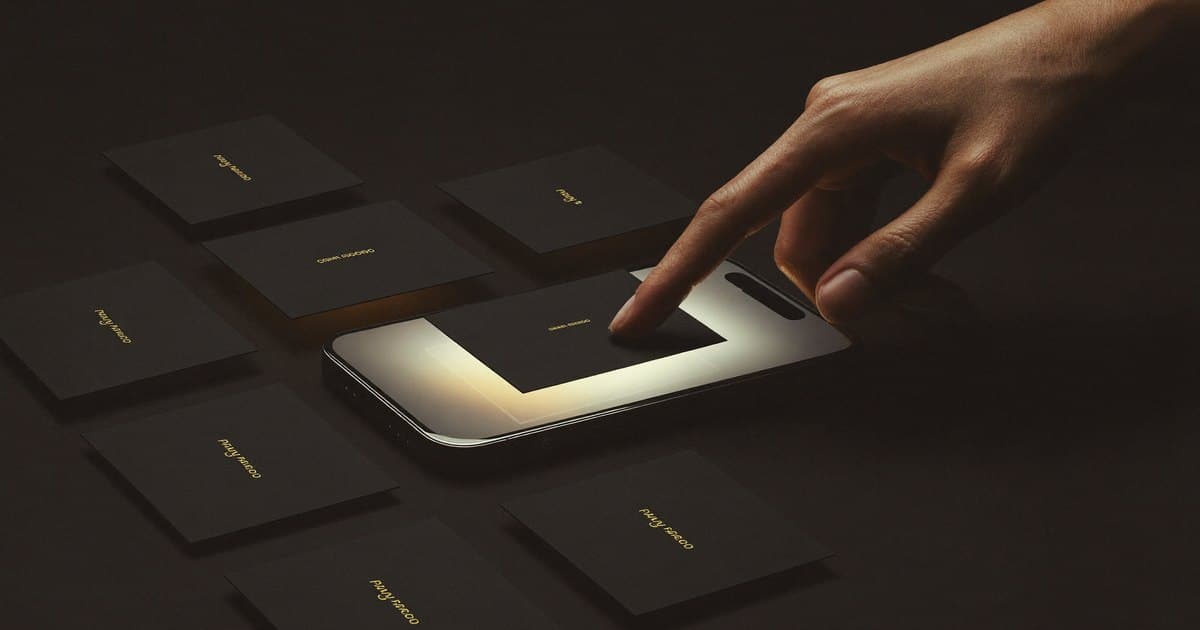
A digital business card is only as useful as the moment you hand it over. The card itself can be beautiful, your profile can be perfectly written, but if the act of sharing it is awkward—fumbling, explaining, waiting—you lose the one thing that matters at an introduction: momentum.
The good news is that a digital card gives you far more ways to share than a paper one ever could. A paper card has exactly one delivery method: you pass it across, hope it survives the day, and hope harder that it gets typed into a phone later. A digital card can be tapped, scanned, texted, emailed, dropped, and saved—each method suited to a different situation. The skill is knowing which one to reach for.
This guide walks through every realistic way to share a digital business card, what each one feels like in practice, and when to use it. By the end you should be able to hand over your details smoothly whether you are face to face, on a video call, or replying to an email at midnight.
The two questions that decide everything
Before the methods, a quick mental model. When you need to share your card, two questions tell you which method fits:
- Are you physically with the person, or apart? In-person opens up tap and scan; remote leans on link, email, and social.
- Is it one person or many? One-to-one favours a tap or an AirDrop; one-to-many favours a QR code on a screen or a link in a bio.
Hold those two questions in mind and the right method usually picks itself. Now the methods themselves, roughly in the order you'll use them.
1. NFC tap (the in-person flagship)
This is the method that makes people lean in. Your physical digital business card has a small NFC chip inside it. You hold the card near the top of someone's phone, their phone reads the link, a notification slides up, and your profile opens in their browser. No app, no aiming, no typing.
When to use it: any face-to-face introduction where the other person has a phone in reach—events, meetings, a coffee, a chance encounter in a lift. It's fastest when the moment is one-to-one and unhurried enough for a two-second tap.
What to know:
- It works on virtually every modern phone. Recent iPhones and Android phones read NFC automatically; the person just needs to be willing to bring their phone to the card.
- No app is required on either side—a common worry that turns out to be unfounded. We cover this fully in Do NFC business cards need an app?
- If a tap ever doesn't register, it's almost always a matter of position or a case in the way, not a broken card. Our guide to why an NFC card isn't working walks through the fixes.
The tap is the showpiece, but it's deliberately short-range and one-to-one. The moment you're sharing with a group, a screen, or someone across a table, you switch methods.
2. QR code scan (one card, many people)
Every VIPKART profile also carries a QR code—the square pattern any modern phone camera reads without a special app. Point, a link appears, tap it, and you're on the same profile a tap would have loaded.
When to use it:
- Groups and audiences. Put your QR on a slide, a name badge, a table tent, or a shop counter and several people can scan it at once, from a comfortable distance. A tap can't do that.
- When the other person prefers their own space. Some people would rather hold their phone up and scan than bring it to your card. The QR meets them where they are.
- On printed material. A poster, a flyer, a packaging insert—anywhere a chip can't go, a printed QR can.
If you want a deeper comparison of when each shines, NFC vs QR code business cards lays it out honestly. The short version: you shouldn't have to choose, and with a good card you don't—it carries both.
3. A plain shareable link (the universal fallback)
Underneath the tap and the scan, your card is really just a web address—something like vipkart.eu/yourname. That link is the most flexible thing you own, because you can paste it anywhere text goes.
When to use it: constantly, and especially when you're not in the room. Drop it into:
- A WhatsApp, iMessage, or SMS reply
- A Slack or Teams DM
- A LinkedIn message after connecting
- A note in a CRM so a colleague can find your profile
The link is also the backbone of every method below—your email signature, your social bios, and your wallet card all point to it. Because it lives on the web and not on a single sheet of card, you can update the profile behind it any time without the link ever changing.
4. Email signature (the one that works while you sleep)
This is the most underrated method, and arguably the highest-leverage. Add your card link to your email signature once and every message you send—dozens a week—quietly invites the recipient to save your full details with one click.
How to do it well:
- Use a short, human call to action: "Save my contact" or "Add me to your phone," linked to your card.
- Keep it to one line. A signature crammed with badges and banners gets ignored; a single clear link gets clicked.
- If your card supports it, link the QR or a small "Save contact" button rather than pasting a long raw URL.
When it shines: B2B and any relationship that starts over email. The person reading your message is already on a device, already thinking about you, and one tap from saving your number, your role, and your links into their phone. It's the closest thing networking has to passive income.
5. Social media bio and posts
Your link in a bio turns an audience you already have into saved contacts. Instagram, LinkedIn, TikTok, X, a YouTube channel description, a Linktree—anywhere there's a "link" field, your card belongs there.
When to use it: if you build any kind of audience, run a personal brand, or get inbound interest from content. Someone watches a video, reads a thread, likes what they see—and the very next tap saves your contact. For founders and freelancers this often outperforms in-person sharing simply on volume.
A note on intent: a profile shared via social bio is doing slightly different work than one handed over at an event. It's worth making sure the top of your profile answers "who is this and why should I care?" in the first second, because a bio visitor arrives colder than someone you've just spoken to.
6. AirDrop and direct device sharing
If you're sharing from your own phone rather than a physical card—say you don't have the card on you—you can send your card link directly. On iPhone, AirDrop the link to a nearby iPhone; on Android, use Nearby Share / Quick Share. The recipient gets the link instantly with no typing.
When to use it: Apple-to-Apple or Android-to-Android, when you're both holding phones and within a few metres. It's quick and feels native, with one caveat—it works best within the same ecosystem, so it's less reliable across iPhone-to-Android than a QR or a plain link, which work everywhere. Treat AirDrop as a nice shortcut when the devices match, not your primary method.
This is also where a purely virtual business card earns its place: no chip to carry, just your profile and its link, ready to AirDrop, text, or paste from whatever device is in your hand.
7. Wallet card (Apple Wallet / Google Wallet)
Some digital cards can be added to Apple Wallet or Google Wallet, sitting alongside your boarding passes and loyalty cards. You open your wallet, your card appears as a pass with its QR ready to scan, and you never have to dig through apps or browser tabs to find it.
When to use it: when you share often and want your card a single swipe away on your lock screen. It's especially handy at busy events where pulling up a profile fast keeps the conversation moving. Think of it as your card always being in your pocket—because it literally is.
8. Save to contacts (vCard) — the other half of every share
Worth naming on its own, because sharing isn't finished until the details actually land in someone's phone. Every method above ends the same way: your profile offers a one-tap "Save to contacts" that writes a proper vCard—name, number, email, company, links—straight into the recipient's address book. No manual typing, no transcription errors, no card that gets thrown out with a coffee cup.
This is the quiet payoff of going digital. The point was never the tap or the scan for their own sake; it was getting your details into a phone reliably, the way digital cards beat paper on the thing that actually matters—follow-up.
Which method should you actually use?
A simple cheat sheet:
- One person, in the room, plenty of time → NFC tap.
- A group, a stage, a counter, a printed surface → QR code.
- Anyone you're not physically with → plain link (text, DM, chat).
- Every email you send → email signature link.
- An audience you've built → social bio link.
- Two matching phones, nearby, no card on you → AirDrop / Quick Share.
- You share constantly and want it on your lock screen → wallet card.
The deeper point: you don't pick one and abandon the rest. The people who get the most out of a digital card use the tap when they're together, lean on the link and signature when they're apart, and let the QR carry the room. The card is one identity; these are just its many doors.
FAQ
Do I need an app to share my digital business card?
No. The whole point is that neither you nor the recipient needs to install anything. You manage your profile from a normal web dashboard, and the other person opens it in the browser they already have—whether they tapped, scanned, or clicked a link.
Does sharing work between iPhone and Android?
Yes, for the universal methods. NFC tap, QR scan, and a plain link all work across iPhone and Android. The only method that's ecosystem-specific is direct device sharing—AirDrop is Apple-to-Apple, Quick Share is Android-to-Android—so use a QR or link when the two phones don't match.
What if someone's phone doesn't react to the tap?
It's nearly always position or a phone case, not a fault. Move the card to the top third of the phone and hold it still for a second. If it still doesn't register, fall back to the QR code or send them the link—you always have a backup. Our troubleshooting guide covers the rest.
Can I share my card without the physical card on me?
Absolutely. Your card is fundamentally a web link, so you can text it, email it, AirDrop it, or paste it from your phone any time. A virtual business card is built entirely around this—no physical object required.
Will the link break if I update my profile?
No. Your link stays the same forever; only the content behind it changes. Update your job title, add a new social account, swap your photo—everyone who saved your card still reaches the current version. That permanence is one of the real advantages over paper.
How do I share with a whole team's worth of cards?
For organisations, each person gets their own profile and shareable link, managed centrally. If you're equipping a sales floor or a conference team, see how digital cards work for teams and our business setup.
Sharing well is mostly about having the right door for the moment—and a digital card gives you all of them. Tap when you're together, link when you're apart, QR for the room, signature for everything you send. If you're ready to carry every one of these methods in a single card, take a look at the VIPKART digital business card—or start with a virtual card and add the physical one when you're ready.
Ready to make a card people keep?
Tap to share, save in seconds, and update your details for life.
Explore VIPKART