



NFC Business Card Not Working? How to Fix It
Your NFC business card won't tap? Here are the real reasons—NFC switched off, wrong spot on the phone, a thick case, locked screen, older iPhones—plus step-by-step fixes for iPhone and Android.
By VIPKART · Published June 20, 2026 · 10 min read
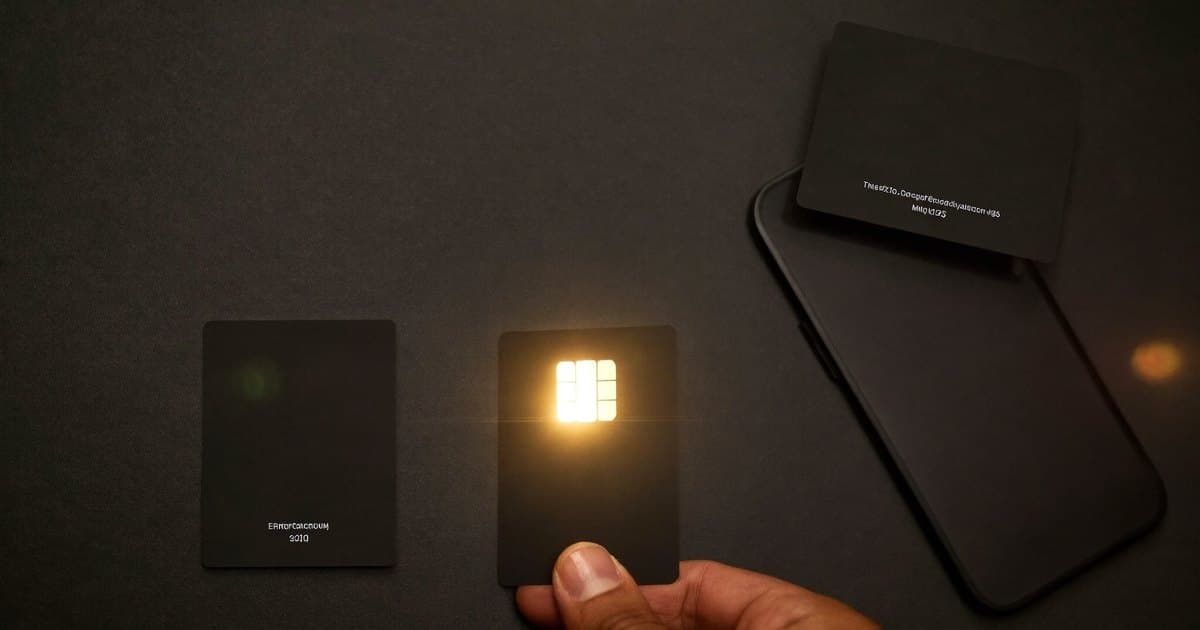
You hand someone your card, they hold their phone to it, and... nothing. The screen stays dark. You tap again, a little harder, slightly embarrassed, and still nothing happens. It is one of the few genuinely awkward moments a digital card can create, and it almost always has a simple cause.
The good news is that an NFC card that "doesn't work" is very rarely broken. In the vast majority of cases the chip is fine and the card is doing exactly what it should. The problem sits with how the phone is being held, a setting that is switched off, or a case that is a few millimetres too thick. This guide walks through every common reason a tap fails, in roughly the order you should check them, with specific fixes for both iPhone and Android. And because no physical interaction is ever perfect, it ends with the one fallback that works on every phone made in the last decade.
If you are new to the technology and want the underlying explanation first, our guide to what an NFC business card is and how it works covers the chip and the tap in plain language.
Before you start: is it the card or the phone?
The fastest way to diagnose a failed tap is to change one variable. If your card will not open on a particular phone, try a second phone—ideally a different brand. If the card works on phone B but not phone A, the card is healthy and the issue is with phone A's settings or hardware. If the card works on neither phone, then either the card itself has a problem or you are tapping the wrong area on both devices, which is more common than you would think.
This one test saves a lot of guesswork. Most people assume the card is faulty and start looking for a replacement, when a thirty-second check reveals the chip is perfectly fine. Keep that mental model as you read on: the card is almost certainly working. We are mostly fixing the phone and the technique.
Reason 1: NFC is switched off (the most common cause)
NFC is a radio. If the radio is off, the phone cannot read anything, and a surprising number of phones ship with it disabled or have it toggled off accidentally.
On Android
Android exposes NFC as a setting you can turn on and off, and sometimes a battery-saver mode or a system update flips it. To check:
- Open Settings and search for "NFC" in the settings search bar—this is faster than hunting through menus, because manufacturers bury it in different places (under Connected devices, Connections, or More connections depending on the brand).
- Make sure the NFC toggle is on.
- If you see a separate setting for NFC payments or contactless, that one does not need to be on to read a card—plain NFC reading is enough.
Once NFC is on, an Android phone reads tags automatically whenever the screen is on and unlocked. There is nothing else to enable.
On iPhone
Here is the part that confuses people: on modern iPhones there is no NFC on/off switch in Settings, because background tag reading is always on. You do not toggle anything. If an iPhone is not reading your card, the cause is almost never "NFC is off"—it is one of the other reasons below, usually the model age or the spot being tapped. We will get to both.
Reason 2: You are tapping the wrong part of the phone
NFC antennas are small, and they are not in the centre of the phone. This single fact accounts for a huge share of failed taps. People instinctively press the card flat against the middle of the screen, which is often the worst possible spot.
Where the antenna actually sits
- iPhone: the NFC reader is at the very top of the phone, near the rear camera. Hold the card to the upper back edge, not the screen and not the middle. On iPhones with Face ID, think of the area just behind the camera bump.
- Android: location varies by manufacturer, but it is usually in the upper-middle or centre of the back panel. If the top does not work, slide the card slowly down the back of the phone until it catches.
The technique that works almost every time: hold the card still against the back of the phone and move it in slow, small circles or slide it gently up and down. You are hunting for the antenna's sweet spot. A quick stab at the screen will fail far more often than a patient, deliberate hold against the back.
Give it a moment, too. The read is fast but not instant—keep the card in place for a second or two rather than tapping and pulling away.
Reason 3: The phone case or a metal surface is in the way
NFC is short-range by design. It works over a couple of centimetres, so anything sitting between the card and the antenna eats into that already-small budget.
- Thick or rugged cases: heavy-duty protective cases, especially ones with built-in batteries or kickstands, can add enough distance to block a weak read. Try removing the case and tapping again.
- Metal cases and metal rings: metal interferes with radio signals. A metal phone case, a metal grip ring, or a metal popsocket sitting over the antenna can kill the read entirely.
- Cards stacked in a wallet case: if the phone has other contactless cards (bank cards, transit passes) stacked behind it in a wallet case, they can confuse or block the read. The same is true in reverse—if your NFC card is buried in a wallet behind other cards when someone taps it, move it to the outside.
- Tapping on a metal table: the surface underneath matters. Lift the card off a metal desk and hold it in the air, or against the phone away from the table.
If removing the case fixes it, you do not necessarily need to ditch the case forever—you just need to know to slip the card out, or tap a touch more deliberately, when that phone is involved.
Reason 4: The iPhone model is too old
This is the reason that catches people out, because the iPhone in question often looks perfectly modern. Background NFC reading—the kind that lets you tap a card with no app open—only arrived with a specific generation of iPhone.
- iPhone XS, XR, and newer (running iOS 14 or later): read NFC tags automatically in the background. Tap and go, no app needed.
- iPhone 7, 8, and X: have NFC hardware but cannot read tags in the background. The owner has to open the Control Center NFC reader or a third-party app first. In practice, this means your card "won't work" when they just tap it.
- iPhone 6S and earlier: the NFC chip only does Apple Pay and cannot read general tags at all.
There is nothing wrong with your card here—the phone simply cannot do the trick. This is exactly why every well-designed digital card carries a QR code as well, which we will come back to at the end. For a fuller comparison of how the two technologies behave on different phones, see NFC vs QR code business cards.
Reason 5: The screen is off or locked
For NFC reading to fire, the phone generally needs to be awake and unlocked.
- An iPhone needs its screen on. A completely asleep, pocketed phone will not read a tap. Wake it first—lifting it usually does the trick—then hold the card to the top back.
- Most Android phones also want the screen on and unlocked. A few will read with the screen on but locked; many will not.
If a tap does nothing, ask the person to wake and unlock their phone, then try again. It sounds almost too obvious, but it is one of the most frequent reasons a demonstration falls flat in the moment.
Reason 6: The notification appears but nothing opens
Sometimes the tap is working—the phone buzzes or a banner slides down—but tapping it seems to do nothing, or the link does not open.
- The banner timed out: on iPhone, the NFC notification appears at the top of the screen and disappears after a few seconds. If it is ignored, nothing happens. Tap again and then promptly tap the banner that appears.
- A browser or focus mode is blocking it: a Do Not Disturb or Focus mode can suppress the notification. Turning Focus off and re-tapping usually resolves it.
- No internet connection: the card opens a web link to your profile. If the phone has no signal and no Wi-Fi, the tap registers but the page cannot load. This is rare but worth knowing when you are demonstrating in a basement conference room with no reception.
Reason 7: The card really is faulty (rare, but it happens)
If you have tried two different phones, confirmed NFC is on, tapped the correct spot, removed the case, and the card still refuses to read on any device, then—and only then—you may have a hardware fault. NFC chips are passive and durable, but they are not indestructible:
- A sharp fold or a deep crease across the middle of the card can sever the antenna loop that rings the chip.
- Prolonged heat, such as leaving the card on a car dashboard in summer, can degrade the chip.
- A manufacturing defect, though uncommon with quality cards, is always possible.
If you genuinely have a dead card, this is the point to contact whoever supplied it for a replacement. With a VIPKART card, your profile lives online independently of the physical card, so a replacement card is simply re-linked to the same profile—your contact details, links, and analytics stay exactly as they were. Nothing is lost with the card itself.
A quick step-by-step checklist
When a tap fails in real life, run through this in order. It takes under a minute and resolves the overwhelming majority of cases.
- Wake and unlock the phone. Screen on, no lock screen.
- Find the antenna. Top back for iPhone, upper-middle back for most Android. Hold, do not stab.
- Hold for two seconds. Move the card in slow circles to find the sweet spot.
- Remove a thick or metal case if it still fails.
- Check the iPhone model. Older than iPhone XS? Use the QR code instead.
- Confirm NFC is on in Android settings.
- Still nothing on a second phone? Then—and only then—suspect the card.
The fallback that always works: the QR code
Here is the honest truth about any tap-based technology: it is brilliant when it works and slightly awkward when it does not, and the variables sit on the other person's phone, outside your control. That is precisely why a serious digital card never relies on NFC alone.
Every VIPKART card pairs the NFC chip with a printed QR code. If someone has an older iPhone, a metal case, NFC switched off, or simply does not want to fumble with the tap, they open their camera, point it at the QR code, and the exact same profile opens. No model restrictions, no antenna hunting, no settings to check—if a phone has a camera, it can read a QR code. It turns a potentially awkward moment into a guaranteed one.
So when you are demonstrating your card and the tap hesitates, do not apologise and do not panic. Simply say "or just scan the code" and point at it. The interaction recovers instantly, and most people never even register that the tap did not fire. If you want to understand the trade-offs between the two methods in depth, our NFC vs QR comparison lays them out side by side, and if you are still setting yours up, our walkthrough on how to set up an NFC business card covers it from the start.
FAQ
Why won't my NFC business card work on an iPhone?
Three usual suspects, in order of likelihood. First, you are tapping the wrong area—iPhones read NFC at the top back near the camera, not the screen or the middle. Second, the iPhone is older than the iPhone XS (the 7, 8, and X cannot read tags in the background). Third, a thick or metal case is blocking the signal. If none of those apply, make sure the screen is awake and unlocked, then hold the card still against the top back for a couple of seconds.
Do I need to turn on NFC for the card to work?
On Android, yes—NFC must be switched on in settings, though it is on by default on most phones. On iPhone, there is no switch; background NFC reading is always active on supported models (iPhone XS and newer). So an iPhone never needs NFC "turned on," but an older iPhone may not support background reading at all.
My card buzzes the phone but nothing opens. What's wrong?
The tap is working—the read succeeded—but the link is not loading. Usually the on-screen notification timed out before it was tapped, a Focus or Do Not Disturb mode suppressed it, or the phone has no internet connection to load your profile page. Tap again, promptly tap the banner that appears, and confirm the phone has signal or Wi-Fi.
Can a phone case really stop an NFC card from working?
Yes. NFC only works over a couple of centimetres, so a thick rugged case eats into that range, and a metal case, ring, or popsocket over the antenna can block it entirely. If a tap fails, slip the case off and try again. If that fixes it, you know the case is the culprit.
How do I know if my NFC card is actually broken?
Test it on two different phones, ideally different brands. If it works on one and not the other, the card is fine and the issue is the second phone's settings, case, or model. Only if the card reads on no phone—after you have confirmed correct technique and removed any case—is it likely a genuine hardware fault, usually from a sharp fold or extreme heat.
What if the person's phone simply can't tap at all?
Use the QR code. Every VIPKART card has one printed alongside the chip, and it opens the identical profile. The person points their camera at it—no app, no settings, no model requirement. The QR code is the universal fallback that works on any phone with a camera.
A card that won't tap is almost never a card that's broken—it's usually a setting, a spot, or a case standing in the way, and now you know how to clear each one. If you want a card that is built to recover gracefully every time, with NFC and a QR code working together so a tap is never the only option, take a look at the VIPKART digital business card. It is designed so the moment of handing it over goes smoothly, whichever phone is on the other side.
Ready to make a card people keep?
Tap to share, save in seconds, and update your details for life.
Explore VIPKART