



How to Set Up Your NFC Business Card (Step by Step)
A plain-language guide to setting up your NFC business card: claim your profile, add your details and links, test the tap, and start sharing. No app, no jargon—about fifteen minutes start to finish.
By VIPKART · Published June 20, 2026 · 10 min read
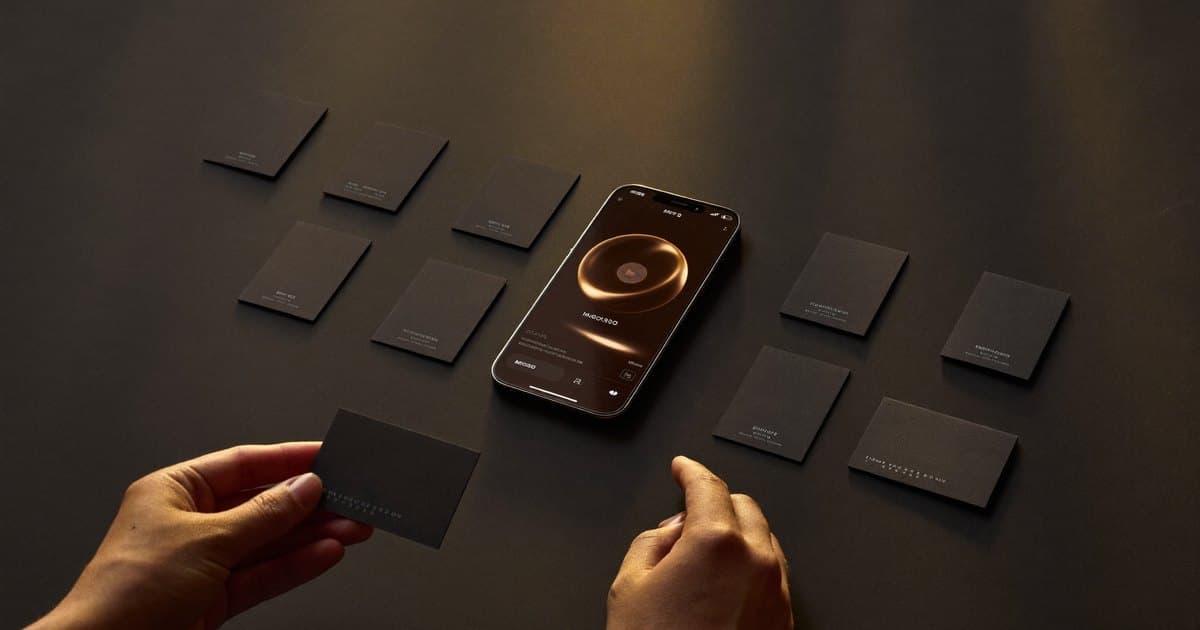
A new NFC card arrives looking almost too plain to do anything. There is no screen, no port, no obvious "on" switch—just a flat card and, somewhere inside it, a chip you cannot see. The first reasonable question is: now what?
The good news is that setting one up is far simpler than people expect, and most of the work happens on a web page rather than on the card itself. You are not configuring hardware. You are filling in a profile and connecting your card to it. The whole thing takes about fifteen minutes the first time, and almost no time at all when you want to change something later.
This guide walks through the entire process, start to finish: unboxing, claiming your profile, adding your details and links, testing the tap so you know it actually works, and then sharing it in the real world. It is written for someone doing this for the first time, so nothing is assumed. If you are still deciding whether an NFC card is right for you, our explainer on what an NFC business card is and how it works covers the technology first.
Before you start: what is actually being set up
It helps to understand the shape of the thing before you begin, because it explains why the steps go in the order they do.
An NFC business card has two parts that live in different places. There is the physical card, with a chip inside that stores a single web link. And there is the online profile that link points to—the page someone sees when they tap your card. The card never changes; the profile changes whenever you want it to.
This split is the most important idea in the whole setup. You are not writing your name and number into the card. You are building a profile online, and the card simply opens it. That is why you can hand out a hundred cards today and still update your phone number next month without reprinting anything—every card already in someone's wallet quietly starts showing the new details.
With VIPKART, the card ships already pointing at a fixed link of the form app.vipkart.eu/c/<your-code>. That link is permanent. Your job during setup is to claim it and decide what loads when someone visits.
Step 1 — Unbox and check the card
Start by getting the card out and giving it a look. There is genuinely nothing to assemble.
Most premium NFC cards carry two ways to open your profile: the NFC chip for tapping, and a QR code printed on the surface for scanning. Having both matters, because not every phone reads NFC and some people simply prefer to point a camera. You do not need to choose between them—they both lead to the same place.
You will not see the chip. It is laminated inside the card along with a thin antenna coil that loops around the edges, so the surface stays smooth and clean. The card needs no battery and no charging; it draws the tiny amount of power it needs from the phone reading it, which is why an NFC card still works years later sitting in a drawer.
If your card came with a small insert, a sticker, or a printed code, keep it nearby. It often contains the link or activation code you will use in the next step. If it did not, that is fine too—the QR code on the card itself will get you where you need to go.
Step 2 — Claim your profile
This is the only step where you create something rather than fill something in. Claiming is how you connect this specific card to your account, so that you—and only you—control what it shows.
There are two common ways in, and both end up in the same place.
Tap or scan the card. Hold the card to the back of your phone, or open your camera and point it at the QR code. Either way, a link opens. For a fresh, unclaimed card this link leads to a short setup or activation flow rather than a finished profile.
Open the link manually. If you were sent a code or a setup link by email after buying, you can simply open that in any browser. With VIPKART, buying a card already creates your account and sends a welcome email, so for many people the profile is half-built before the card even arrives.
During claiming you will either sign in to an existing account or set a password for a new one. Once you are in, the card is bound to your account. From that moment on, tapping it opens your page, and the dashboard becomes the place you go to edit everything. If you want the bigger picture of building the page behind the card, our guide on how to create a digital business card goes deeper on the profile side.
One reassuring detail: claiming does not lock the link. The fixed address stays the same, but the content behind it is entirely yours to rewrite later.
Step 3 — Add your details
Now you fill in the profile. Treat this like writing a very short, very clear introduction to yourself, because that is exactly what the person tapping your card will see.
Start with the essentials, the things almost everyone wants:
- Name as you want it to appear—the same name people will look for when they search their contacts later.
- Job title and company, so there is immediate context for who you are.
- Phone number in full international format (with the country code), which matters in Europe where you will meet people across borders.
- Email address you actually check.
- A photo, ideally a clear headshot. People remember faces far better than job titles, and a photo turns an anonymous page into a person.
A short line about what you do helps more than you would think. "Commercial real estate, Bucharest" or "Wedding photographer, EU-wide" gives the reader an instant handle on you. Resist the urge to write a paragraph; one tight sentence does the job. Remember that this is the page a stranger sees in the ten seconds after meeting you—lead with what helps them remember and reach you, and leave the rest for later.
Multi-language profiles
If you work across countries—which, in Europe, many people do—you can usually offer your profile in more than one language. A good platform shows the visitor the version that matches their phone, so a contact in Berlin sees German and one in Madrid sees Spanish. Set up your primary language first, get the card working, and add translations once the basics are solid.
Step 4 — Add your links
Details tell people who you are. Links give them somewhere to go next, and this is where a digital card pulls clearly ahead of paper.
Add the links that make sense for your work, not every link you own. A short, deliberate set beats a wall of icons every time. Common choices include:
- LinkedIn, the most-tapped link for most professionals.
- Your website or portfolio, especially if your work is visual.
- WhatsApp, which is the default messaging channel across much of Europe and lets people reach you in one tap.
- Instagram or another social profile, if it is genuinely part of your professional presence.
- A booking link (for a calendar or appointment tool) if you want people to schedule time directly.
Think about the single action you most want someone to take after meeting you. If it is "connect on LinkedIn," put that first. If it is "book a call," make the booking link prominent. The card is a tool with a job, and ordering the links by intent makes it do that job better.
A quick word on restraint: every extra link is one more decision for the visitor. Three or four well-chosen links feel curated and confident. A dozen feels like a link dump. When in doubt, cut.
Step 5 — Save to contacts (the vCard)
The whole point of handing someone your card is that your details land in their phone. The cleanest way to make that happen is a "Save to contacts" button on your profile that downloads a vCard—a standard contact file that drops your name, number, email, and photo straight into their address book.
This is worth getting right, because it is the moment the connection actually sticks. A profile someone admires and then forgets is a missed opportunity; a contact saved to their phone is a relationship that can continue. Make sure the save button is enabled, then preview your own profile and save yourself as a test contact. You will see exactly what the other person gets, and you will catch anything that imported oddly—a missing country code, a nickname instead of your full name, a photo that did not attach.
Step 6 — Test the tap
Do not skip this. Testing takes thirty seconds and saves you the small embarrassment of a card that does nothing in front of a new contact.
Here is a reliable way to test:
- Unlock your phone and make sure the screen is on. Most phones will not read NFC with the screen off or locked.
- Hold the card to the back of the phone, usually near the top third where the NFC antenna sits. On many phones the reader is closer to the cameras than to the centre.
- Wait a beat. A notification should appear offering to open your profile link. Tap it, and your page should load.
- Try the QR code too. Open your camera, point it at the code, and confirm the same profile opens.
If you have both an iPhone and an Android phone to hand, test on both—they place their NFC readers in slightly different spots, and it is good to know where the card "catches" on each.
If nothing happens, the usual culprits are simple: the screen was locked, you held the card over the wrong part of the phone, a thick case got in the way, or, on some older Android phones, NFC is switched off in settings. We walk through every one of these in what to do when an NFC business card is not working, so if your first tap falls flat, start there rather than assuming the card is faulty. The overwhelming majority of "broken" cards are simply being tapped in the wrong place.
Do you need an app for this?
No—and that is part of the appeal. Modern iPhones and most Android phones read NFC tags with the camera or built-in system, so neither you nor the person you meet needs to install anything. The card opens a normal web link in a normal browser. If you want the full reasoning, we cover it in whether NFC business cards need an app.
Step 7 — Start sharing
With the profile filled in and the tap tested, you are ready to use the card for real. The mechanics are gloriously low-effort: in person, you offer the card, the other person taps or scans, and your profile opens on their screen. They save your contact, and you are done.
A few habits make it land better. Tap toward them rather than handing the card over and waiting—it feels more deliberate and avoids the awkward "where do I tap?" moment. And because the card is reusable, you usually keep it; you are sharing a profile, not giving away card stock. One card can introduce you to as many people as you meet.
When you are not face to face, you are not stuck either. Your profile has a normal web link, so you can drop it into an email signature, a message, or a social bio, and people open it without any card at all. For the full set of options, see how to share your digital business card. If your card belongs to a wider team, the same setup logic scales, which we cover in digital business cards for teams.
Keeping it up to date
The setup is not really "done" so much as "live." Because the link is fixed and the content is yours, you change the profile any time without touching the card. New job, new number, new portfolio piece—edit it in the dashboard and every card you have already handed out updates instantly.
A sensible rhythm is to glance at your profile whenever something changes professionally: a role change, a new headshot, a project worth showing off. It takes a minute, and it means the next person who taps a card you gave out a year ago still sees the current you. That is the quiet advantage of a digital card over paper, which freezes the moment it leaves the printer.
Frequently asked questions
How long does it take to set up an NFC business card?
About fifteen minutes for a first-time setup, and most of that is filling in your details and choosing links. Claiming the card and testing the tap take only a couple of minutes each. Later edits—changing a number, adding a link—take seconds.
Do I need to write data onto the card myself?
No. The card already holds a fixed link from the factory. You are not programming the chip; you are building the online profile that link points to. The card stays the same forever while the profile behind it is yours to edit.
What if I make a mistake in my profile?
Nothing is permanent except the link. Open your dashboard, fix the detail, and save. The change appears immediately for anyone who taps your card afterward—no reprint, no new card.
Can I set up one card for multiple links?
Yes. A single card opens one profile, and that profile can hold many links—website, LinkedIn, WhatsApp, a booking page, and more. The card points to the page; the page holds everything.
My card does not tap. Is it broken?
Almost certainly not. The common causes are a locked screen, holding the card over the wrong part of the phone, a thick case, or NFC being switched off on an Android phone. The QR code is always there as a backup. Our guide on an NFC card that is not working walks through each fix.
Will the card still work if I change jobs?
Yes—that is exactly what it is built for. Update your title, company, and contact details in the dashboard, and the same card now shows your new information. You keep the card; only the profile changes.
Ready to set yours up?
The hardest part of an NFC card is usually believing it is this simple. Claim the profile, fill in a few fields, choose your links, test the tap, and you are sharing in a way that feels modern and lands cleanly. From there, it quietly maintains itself—edit once, and every card you have ever handed out updates with you.
If you are looking for a card built around exactly this flow—a permanent link, an editable profile, and a tap that just works—take a look at the VIPKART digital business card. It is designed so the setup you just read about takes minutes, and the card keeps earning its place in your pocket long after the first introduction.
Ready to make a card people keep?
Tap to share, save in seconds, and update your details for life.
Explore VIPKART